







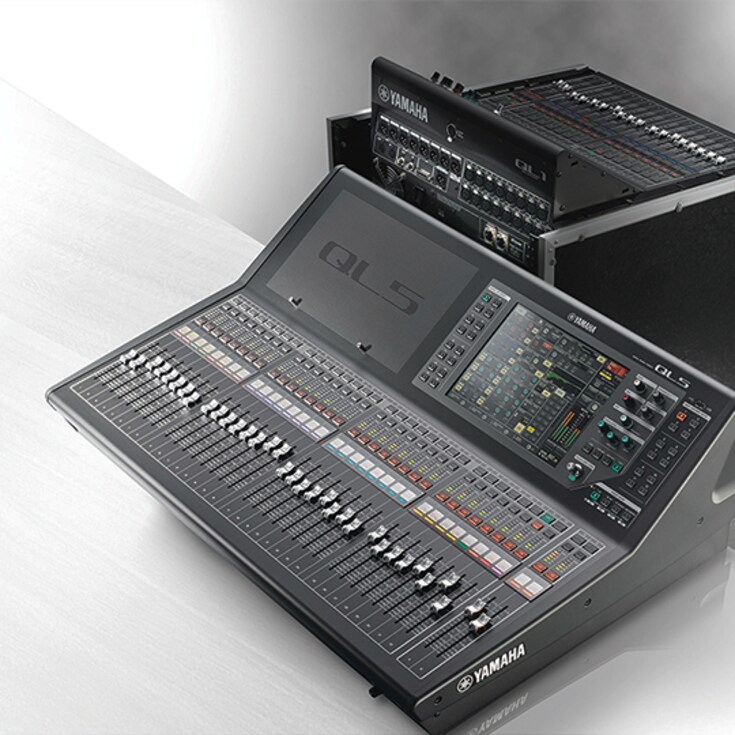
QL series consoles offer all-in-one mixing, processing, and routing capability for small to medium scale live sound, corporate speech events, installations, and much more.

iPad application for controlling and monitoring QL Series mixing console.

QL StageMix provides remote control of QL series functions
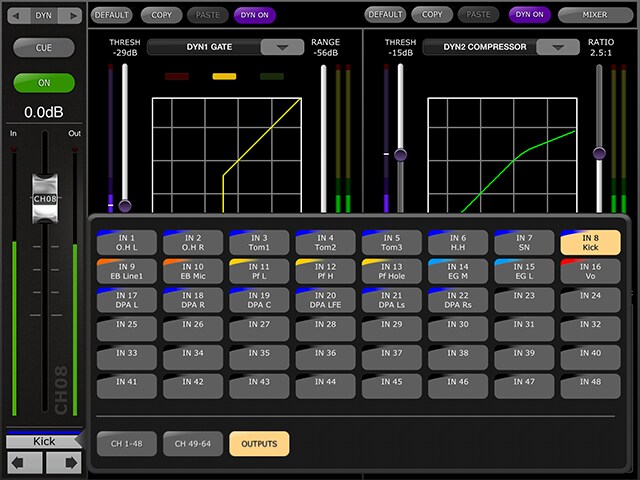
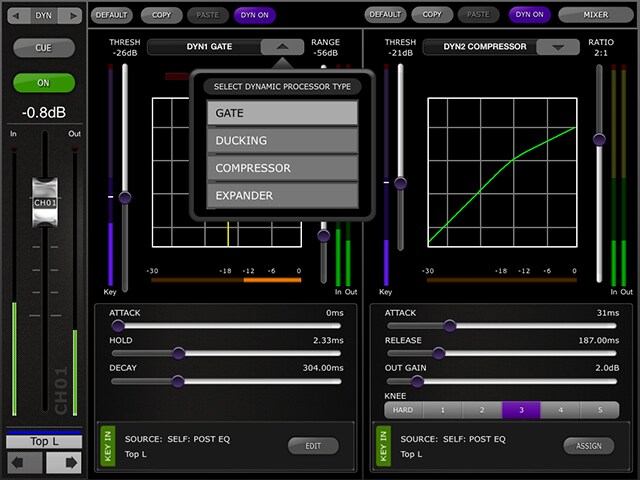
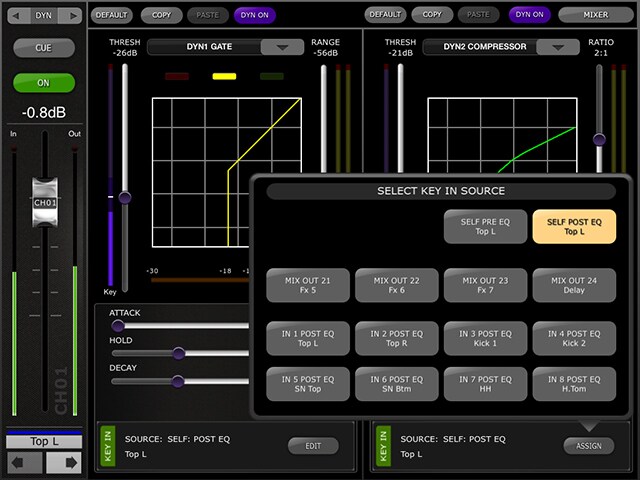
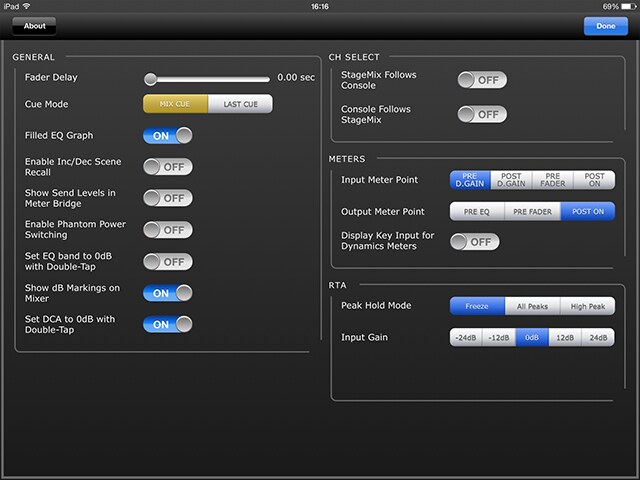
StageMix is an application for the Apple iPad that provides remote control of Yamaha QL digital mixing console functions via a simple, intuitive graphical interface from anywhere within wireless range. The software has been specifically designed to allow engineers to adjust monitor mixes from the performers’ positions on stage, directly controlling mix parameters via the iPad rather than having to rely on verbal directions to a second engineer. The result is better mixes in less time; a huge advantage during high-pressure pre-show setup. Although StageMix is focused on the requirements for adjusting monitor mixes on stage, its range of features is continually expanding, allowing it to be used for a wider variety of remote control functions.
* Please read privacy policy carefully before downloading and installing the StageMix.
* Apple, iPhone, iPod touch and iPad are trademarks of Apple Inc. registered in the U.S. and other countries. App Store is a service mark of Apple. Inc.
Funktioner
The Best Listening Position is the Best Control Position
In many cases the console position is not the optimum place to be when mixing for live sound. In fact, space and other restrictions sometimes mean that the console ends up in the worst possible spot for listening and mixing.
Mixer Window
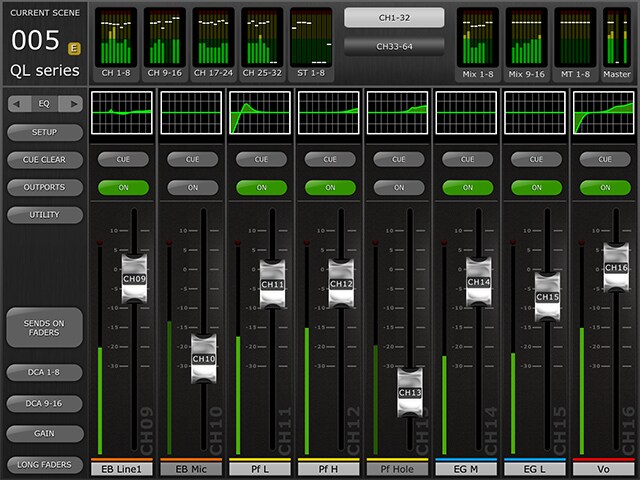
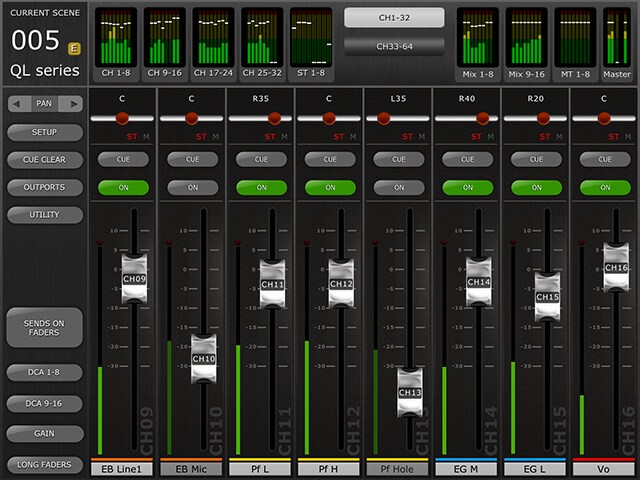
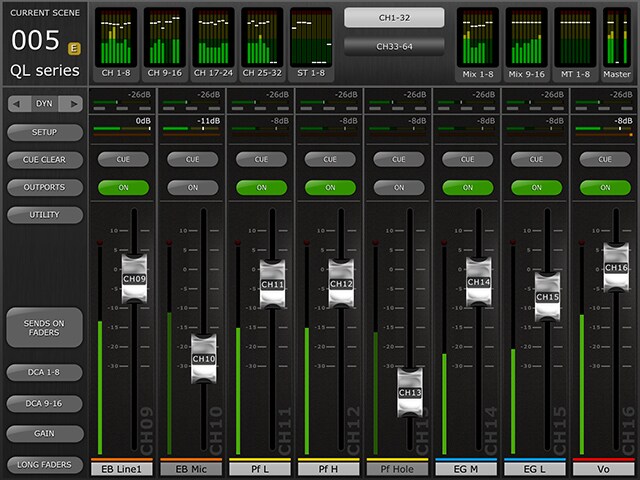
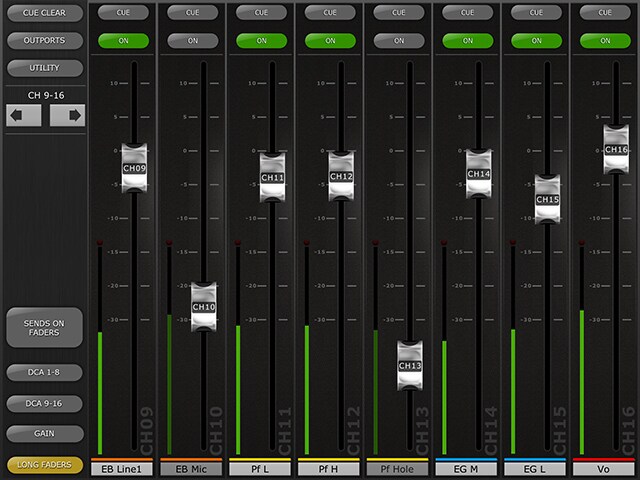
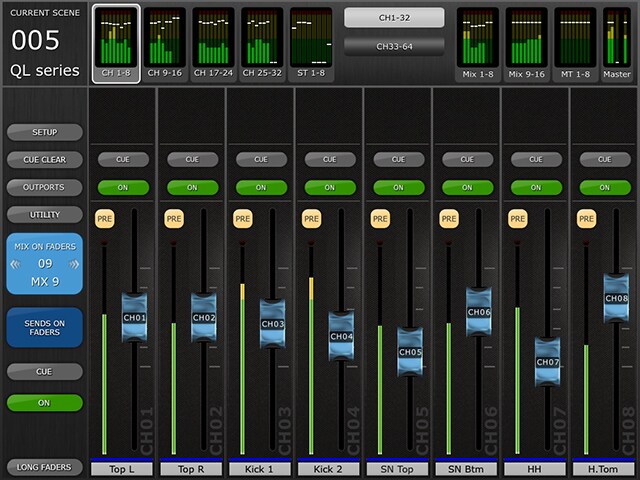
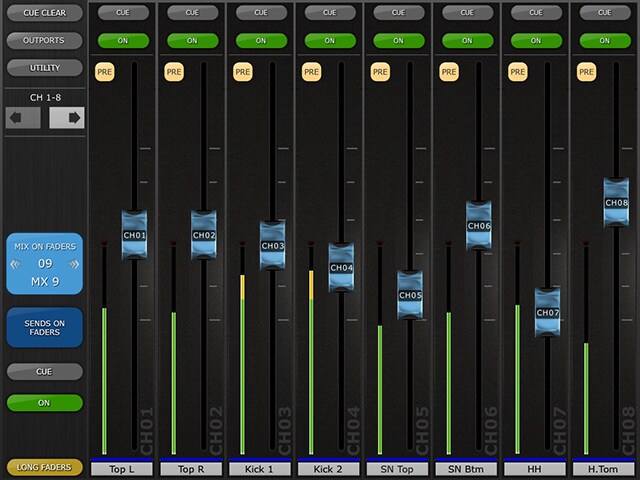
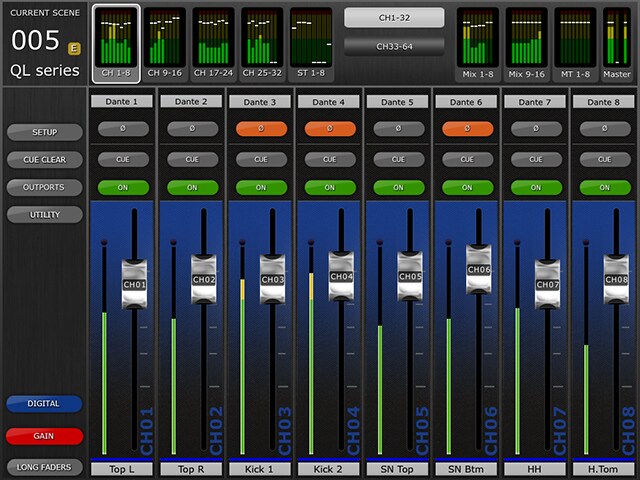
The main page of the StageMix is called the "Mixer" window. It shows the EQ curve, CUE and ON buttons, fader and level meters, and channel names for eight adjacent channels. Across the top of the screen, all Input, Mix and Matrix level meters and faders are displayed in blocks of eight. This is the "Navigation/Meter Bridge". Press any of these blocks to select which channels are viewed in the fader strips below.
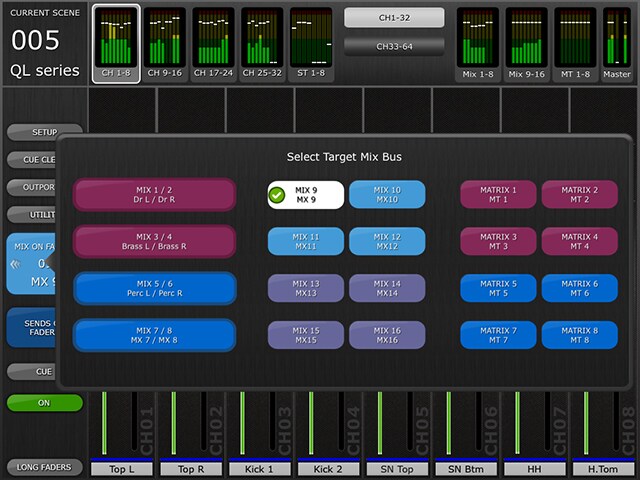
SENDS ON FADERS
[CUE] and [ON] buttons appear below, allowing the currently active Mix or Matrix bus to be Cued and turned On/Off.
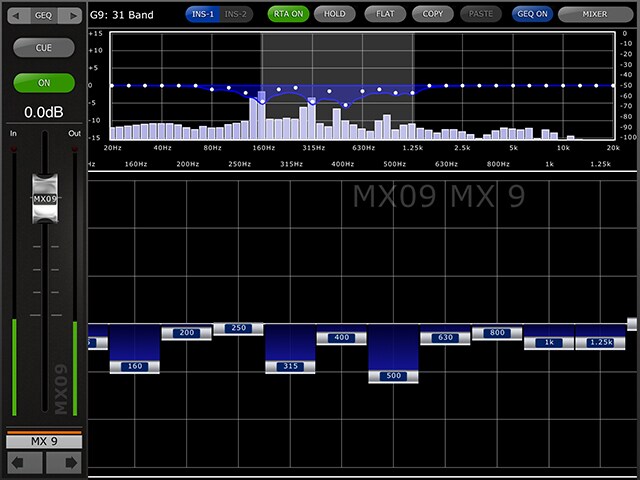
EQ Editing (GEQ)
The upper section of the GEQ setup screen shows GEQ curves and gain levels of all 31 bands. White dot indicates the level position of each band. You can set up each band level by faders shown below it. Settings can be done up to 10 bands at once. Slide the screen to select different bands.
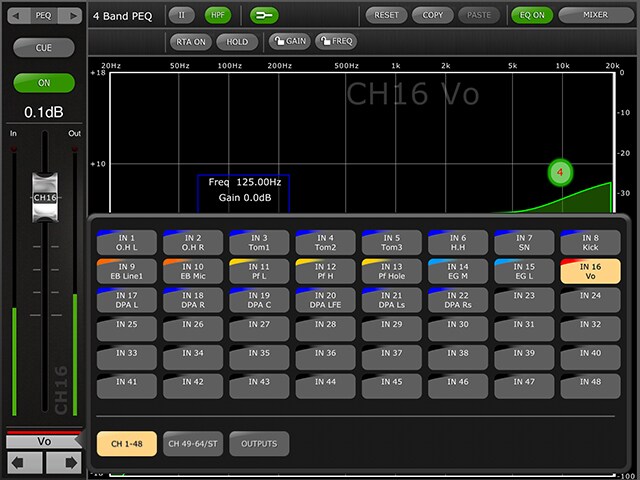
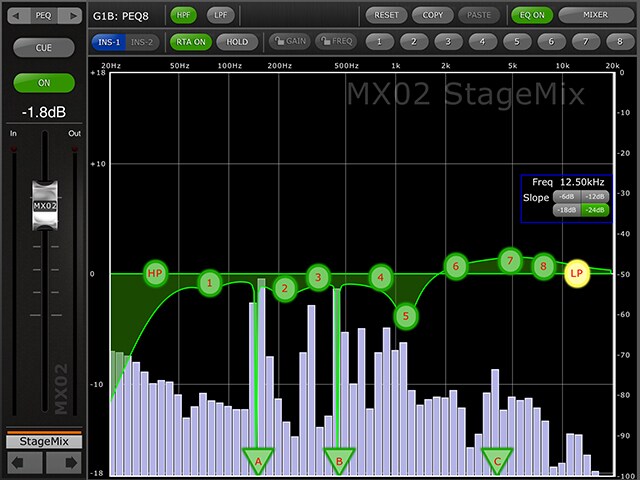
EQ Editing (PEQ)
One band of Parametric EQ can be adjusted at a time. Press one of the green circles to select the band, and it will be highlighted yellow. EQ bands in StageMix are labelled as follows: - HP = HPF (input channels only) - 1 = Low Band - 2 = Low-Mid Band - 3 = High-Mid Band - 4 = High Band
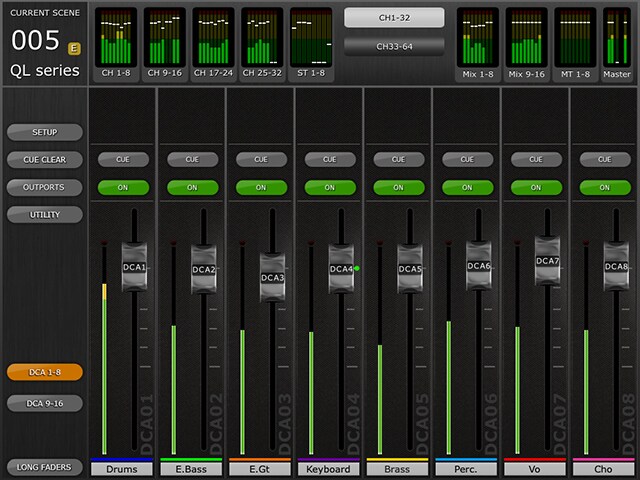
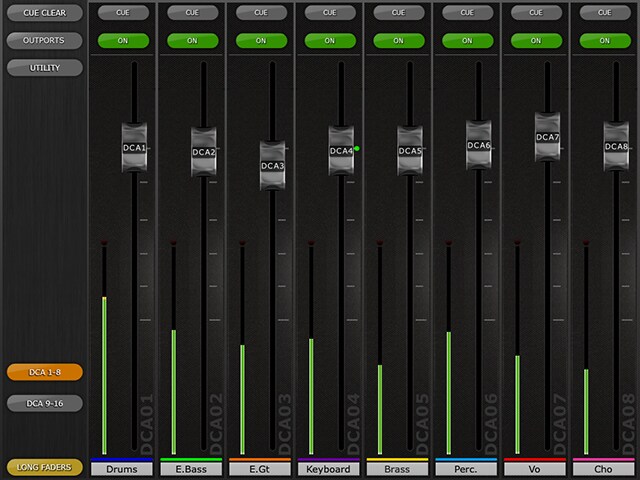
Gain / DCA
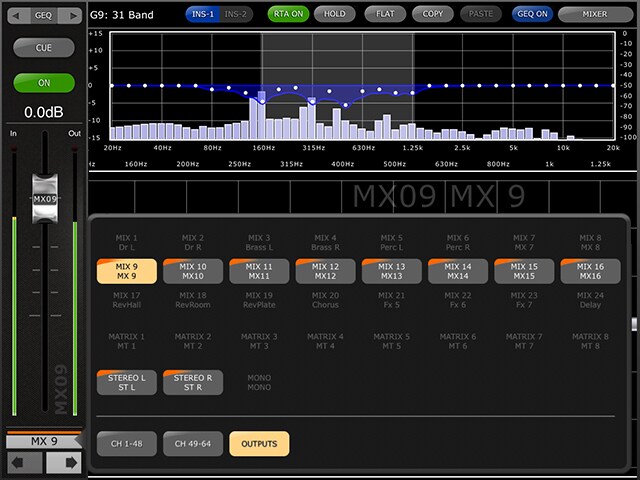
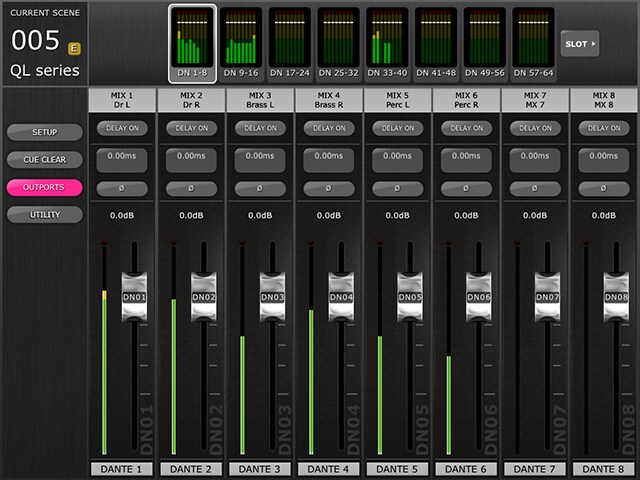
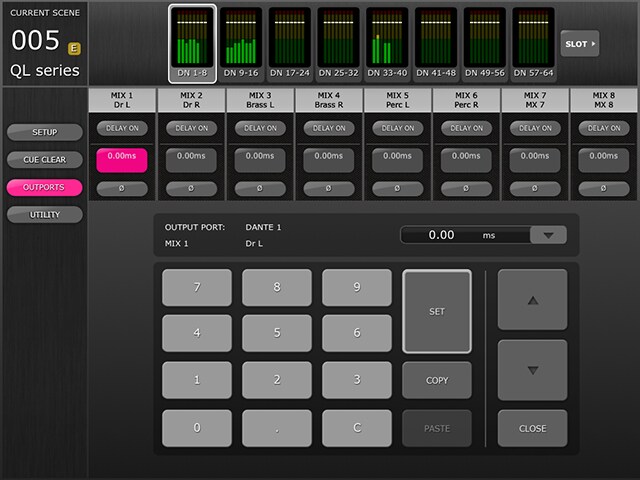
Outports
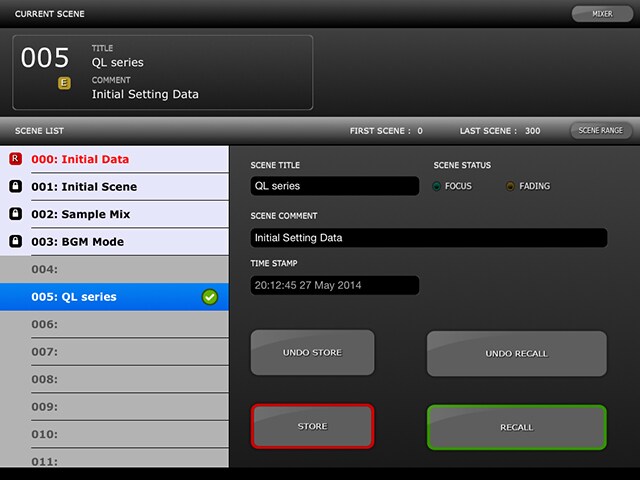
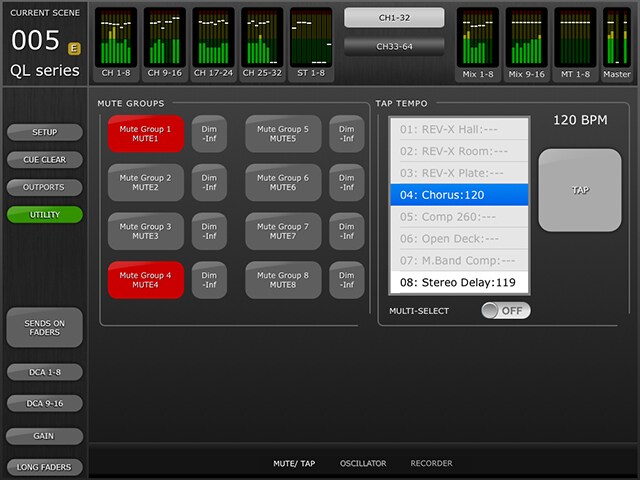
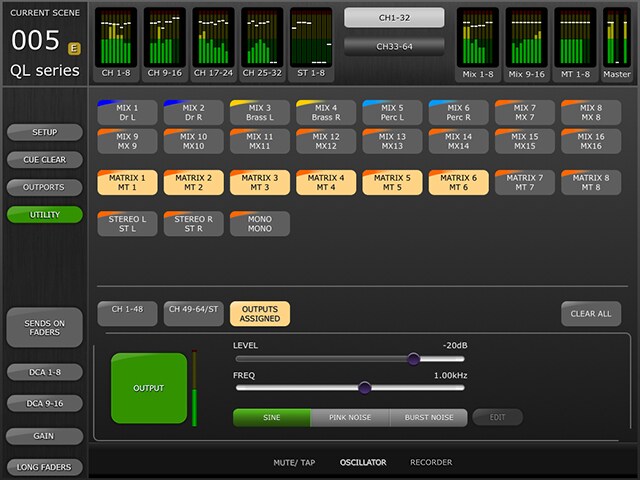
Scene Memory / Utility / Setup
Relaterad information
Relaterade produkter


* Specifications are subject to change without notice. The colors and finishes shown may vary from those on the actual products.
